
Below is a step-by-step guide on how to book, manage, and cancel your workouts at The Moving Body.
How to Book a Group Class
- Open the MindBody app and make sure you’re logged in.
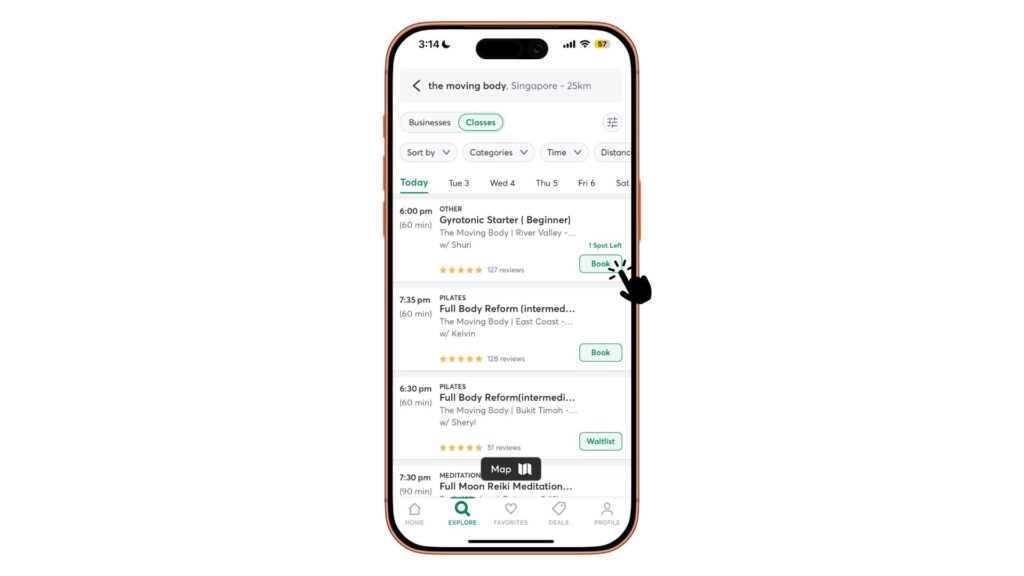
- In the search bar at the top, search for “The Moving Body”.
- Tap “CLASSES”.
- Select your preferred day and/or time.
- Browse the available classes for each day, including the instructor and class type. Tap on a class to read more details. Check which studio you prefer.
- Once you’ve chosen your class, tap “BOOK” and follow the prompts to confirm your booking.
- Keep an eye out for the confirmation email from MindBody.
How to Book a Private Session
To book a Private Session, please reach out to us directly via WhatsApp so our team can assist you and recommend the most suitable option for your needs.
Click here to WhatsApp Bukit Timah studio
Click here to WhatsApp East Coast studio
Click here to WhatsApp River Valley studio
How to Add Payment Details
- Tap “Profile” at the bottom of the screen in the MindBody app.
- Tap the gear icon on the top right section
- Tap “Wallet”.
- Tap “Add a Card” and add your card details
Once your payment details are saved, you can proceed to book your Group Classes or Private Sessions with ease.
How to Cancel a Group Class
- Tap the menu icon (three horizontal lines) at the top-left of the MindBody app.
- Tap “My Classes” and select the class or appointment you wish to cancel.
- Tap “Cancel Booking” at the bottom of the screen.
- Confirm the cancellation on the pop-up—and you’re done.
Please note:
According to The Moving Body’s cancellation policy,
- Group Classes must be cancelled at least 24 hours in advance
- Private Sessions must be cancelled at least 12 hours in advance
Late cancellations or no-shows will be charged in full. Please notify us in advance to avoid being late charged.
Current Package Not Appearing in the MindBody App?
Here’s How to Sync It
To check your active package, open the MindBody app, tap “Profile”, then tap “Your Passes.”
If your package isn’t showing, follow the steps below:
On the MindBody App
- Open the MindBody app and tap “Profile” (bottom right).
- Tap the gear icon at the top right.
- Tap “Resend account confirmation email”
- (On Android: Account → “Resend account confirmation email”)
- Check your inbox for the verification email.
- Follow the steps in the email, then log out and log back in using your new password.
- Your package should now appear under Profile → Your Passes.
If the Issue Persists (Desktop Version)
- Go to the MindBody website and sign in using the same details as your app.
- Click “Places You Go” on the left, then select “Start Searching.”
- Under Find another MindBody business, search for “The Moving Body.”
- Click on our logo when it appears.
- Log in again if prompted and save any changes.
Your account should now be linked, and your current package should be visible under Your Passes in the app. We look forward to welcoming you soon 🤍